1. Purpose and overall flow
Screeners are rule sets that scan the market in real time and detect sharp moves in:
- price (pumps / dumps),
- Open Interest (OI),
- liquidations of longs and shorts.
When a condition is met the system:
- creates an entry in Live Signals,
- optionally sends a notification to your Telegram bot.
Clicking a signal opens the TradingView CHART for that pair and automatically fills the Pair field in the Trade panel. From there you can open a trade directly from the dashboard or just use the chart for analysis.
2. Creating a Telegram bot
To receive screener alerts in Telegram:
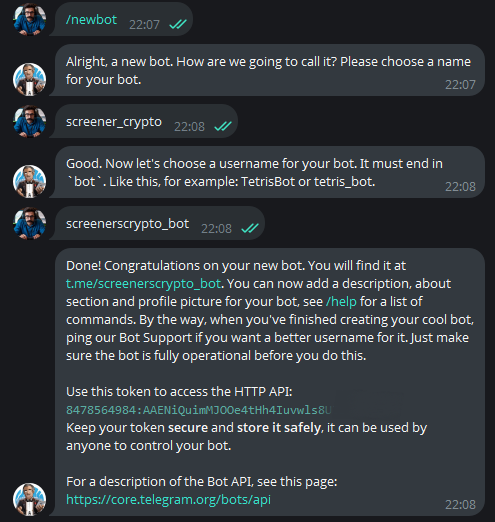
- Open a chat with @BotFather in Telegram.
- Press Start.
- Send the command
/newbot. - Enter a display name for the bot.
- Enter a username that ends with
_bot(for example,my_screener_bot). - BotFather will return a link to the bot and a Bot API token, for example:
1234567890:AA...XXXX- Copy and store this token — it will be used in screener settings.
- Open the bot link in Telegram and press Start, otherwise the bot will not be able to message you.
IMPORTANT: To receive screener notifications, your Telegram account must be linked in the system.
You can link it in your dashboard at: https://crypto-resources.com/dashboard/account/settings/
3. Screeners
3.1. Global Coin Filters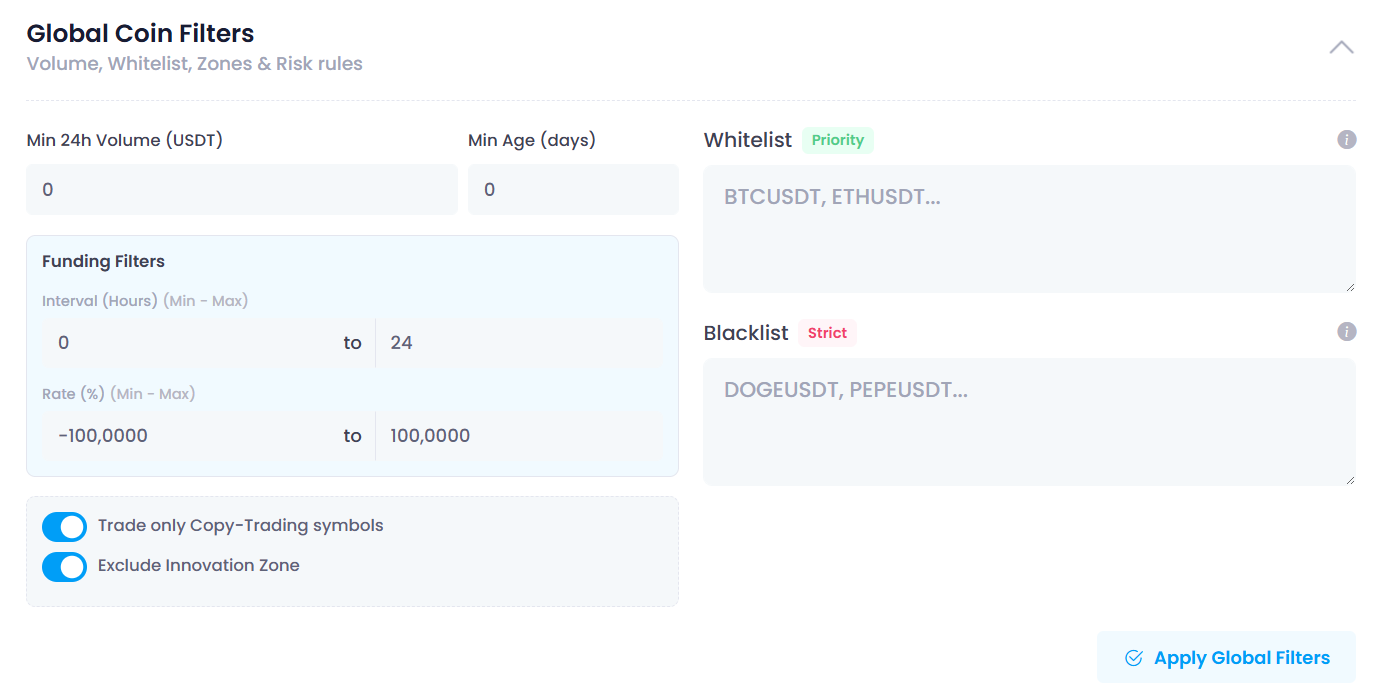
Section: Global Coin Filters → Volume, Whitelist, Zones & Risk rules.
These settings apply to all screeners and define the universe of coins they can work with.
Min 24h Volume (USDT)
Minimum 24-hour trading volume for a coin. Coins with lower volume are not scanned at all.
Min Age (days)
Minimum age of a coin in days since listing. Used to exclude very fresh listings.
Funding Filters
This block has two ranges:
Interval (Hours) (Min – Max) defines the period used when analysing the funding rate.
Rate (%) (Min – Max) defines the allowed range for the funding rate. If a coin’s funding is outside this range, it is excluded.
Whitelist (Priority)
Acts as a “ONLY these coins” rule.
If the whitelist is empty, screeners work on all coins that pass other filters.
If you add one or more tickers here, all other coins are ignored and only these tickers are monitored.
Examples:
BTCUSDT – only BTCUSDT will be scanned.
BTCUSDT, ETHUSDT, SOLUSDT – only this set of coins will be scanned.
Blacklist (Strict)
Tickers that are completely excluded from all screeners, regardless of other filters.
Example: DOGEUSDT, PEPEUSDT.
Trade only Copy-Trading symbols
When enabled, restricts the universe to symbols that are available in Copy-Trading.
Exclude Innovation Zone
When enabled, removes coins from Innovation / high-risk zones of the exchange.
After any change in Global Coin Filters, press Apply Global Filters.
3.2. Creating a new screener and enabling Telegram alerts
Dashboard section: Active Screeners → New Screener.
To create a new screener:
- Click New Screener.
- In the new screener row, set the Type. Available event types: Pump (price up), Dump (price down), OI Up (OI Increase), OI Down (OI Decrease), Liq Long, Liq Short.
- Select the Exchange, for example Bybit.
- Set the change threshold in Change (%), for example
2. - Set the time window in Time (sec), for example
60. - Turn on Telegram Alert if you want this screener to send alerts to your Telegram bot.
- Paste your Bot API token into the token field.
- Save the screener. It will appear in Active Screeners.
When conditions are met, the screener generates an event in Live Signals and, if Telegram Alert is enabled and the token is valid, a notification is sent to your Telegram bot.
3.3. Testing Telegram alerts
To test the connection between a screener and Telegram, it is convenient to use a “frequent” condition.
Example test parameters:
- Pump 1% in 60 seconds, or
- Dump 1% in 60 seconds, or
- OI change 1% in 60 seconds.
Test procedure:
- Create a separate test screener with one of these conditions.
- Enable Telegram Alert and paste the Bot API token.
- Make sure you have pressed Start in the chat with your bot in Telegram.
- Wait for the first trigger and confirm that the alert appears both in Live Signals and in your Telegram bot.
4. Dashboard Settings (Trading Controls and Accounts)
Open via the gear icon in the Trade panel: Dashboard Settings.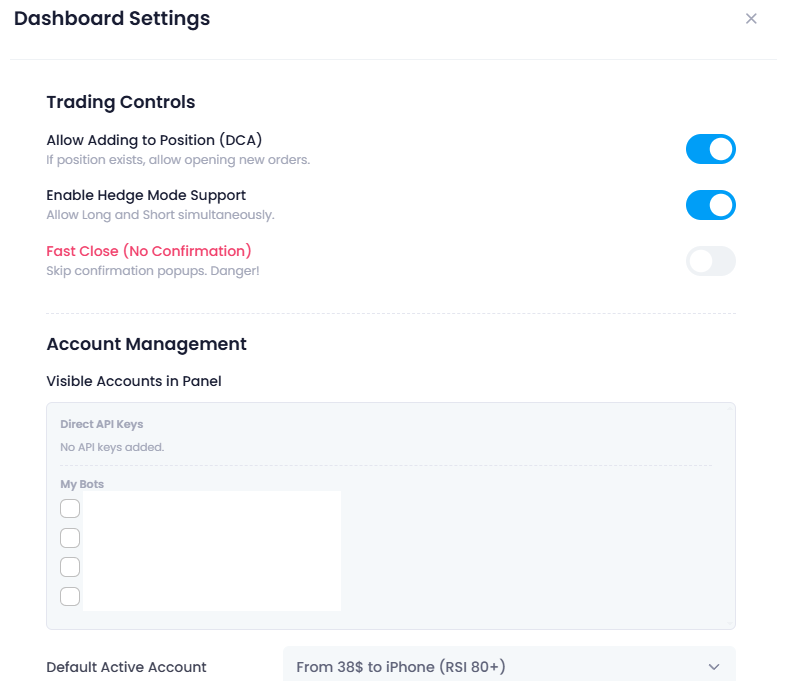
4.1. Trading Controls
Section: Trading Controls.
Allow Adding to Position (DCA)
If a position already exists for a pair, allows opening additional orders in the same direction. Used for averaging in (DCA).
Enable Hedge Mode Support
Allows holding Long and Short simultaneously on the same symbol. Requires Hedge Mode to be enabled on the exchange side.
Fast Close (No Confirmation)
Closes or reverses positions without confirmation pop-ups. Speeds up workflow but increases the risk of misclicks.
4.2. Account Management
Section: Account Management.
Visible Accounts in Panel
This list controls which accounts are available in the Trading Account dropdown in the Trade panel.
Direct API Keys
Shows connected exchange accounts by API. A checkbox next to each key enables or disables its visibility in the Trade panel.
My Bots
Shows your ST bots and strategies. A checkbox next to each bot enables or disables using this bot as a trading account in the Trade panel.
Default Active Account
Defines which account is preselected in the Trade panel when the dashboard loads.
Options: -- Manual Select -- (no auto selection) or a specific API account / bot from the list.
API key connection and bot configuration are done in their own sections of the platform and covered in separate manuals. Screeners and the Trade panel only use accounts that are already configured.
After any change in Dashboard Settings, press Save Changes.
5. Live Signals
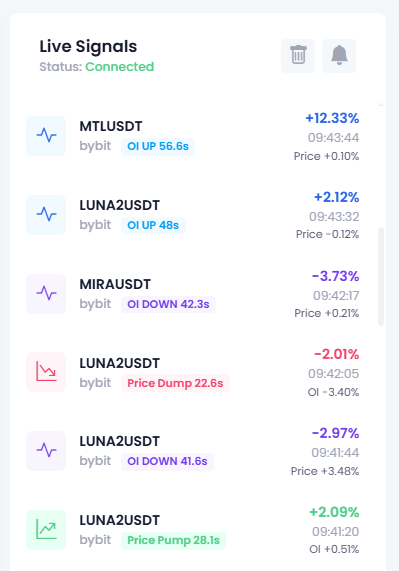
Section: Live Signals on the left side of the dashboard.
This panel displays all events triggered by your active screeners. For each signal you see:
- symbol (pair),
- exchange,
- event type (pump, dump, OI up/down, liquidations),
- time of trigger and basic change info.
Clicking a signal:
- opens the corresponding pair in the central CHART (TradingView),
- fills the Pair field in the Trade panel with this symbol.
This removes manual pair search and lets you react to the signal immediately.
6. Trade panel
Section: Trade → Execution Settings on the right side of the dashboard.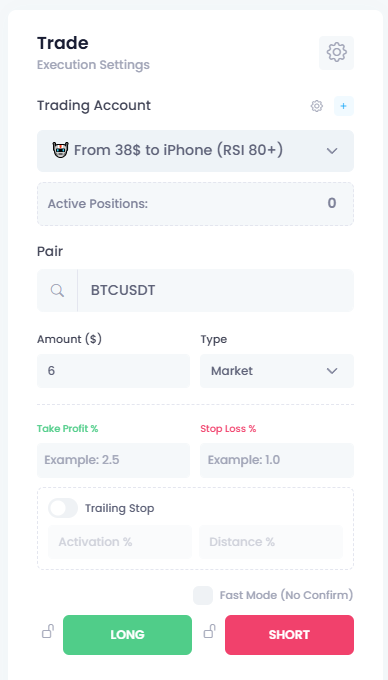
The Trade panel is used to open positions manually or to hand positions over to a selected bot.
6.1. Trade fields
Trading Account
Exchange API account or ST bot, as configured in Account Management.
Active Positions
Number of open positions on the selected account.
Pair
Trading symbol, for example BTCUSDT or GLMUSDT. This field is set automatically when you click a signal in Live Signals, or it can be entered manually.
Amount ($)
Position size in US dollars.
Type
Order type, for example Market
Take Profit %
Target profit level in percent relative to the entry price.
Stop Loss %
Maximum allowed loss level in percent relative to the entry price.
Trailing Stop
Optional block enabled with a switch.
Field Activation % defines the profit level at which the trailing stop becomes active.
Field Distance % defines how far from the current price the stop is held while trailing.
Fast Mode (No Confirm)
When enabled, orders are sent immediately without an extra confirmation dialog.
LONG / SHORT buttons
Execution buttons to open a Long or Short position with the specified parameters.
6.2. Behaviour by account type
If Trading Account is a Direct API Key, all orders are sent directly to the exchange. Position management then follows the parameters set in the Trade panel (Take Profit, Stop Loss, Trailing Stop, Fast Mode).
If Trading Account is one of your My Bots, every manually opened position is handed over to that bot. Further management of the trade (take-profits, stops, averaging, trailing logic) is controlled by the bot’s own strategy settings.
7. Typical workflow
Initial one-time setup:
- Configure Global Coin Filters to define your universe of symbols (volume, age, funding, whitelist / blacklist, Copy-Trading, Innovation Zone).
- Create screeners for your scenarios: price pumps, dumps, OI spikes, liquidations.
- Set up a Telegram bot and connect it via Telegram Alert if you want external notifications.
- Configure Dashboard Settings: Trading Controls and visible accounts in the Trade panel.
Daily work with screeners:
- Screeners monitor only the symbols that fit your filters and conditions.
- When a condition is met, you get a visual and sound alert in Live Signals, and optionally a Telegram notification.
- You click the signal, get the TradingView CHART for that pair and an auto-filled Pair in the Trade panel.
- You set Amount ($) and risk parameters and, if needed, open a LONG or SHORT directly from the dashboard, without switching to the exchange website.
- After the entry, the position is managed either by the order parameters from the Trade panel or by the selected bot. You do not need to manually watch every chart — you just react to new signals that match your pre-defined setups.